
IHSS Provider

How to enter your hours in ESP if you live with the recipient

9 stepsCDSS 06/2023

Independent guide based on official CDSS documents. Not affiliated with CDSS, the State of California or any county.

This guide is for providers who live in the same home as the recipient. You only enter the hours and minutes you worked each day. You do not check in or out. Then you submit the timesheet for your recipient to review.

Screens may look slightly different today.

  • Log in

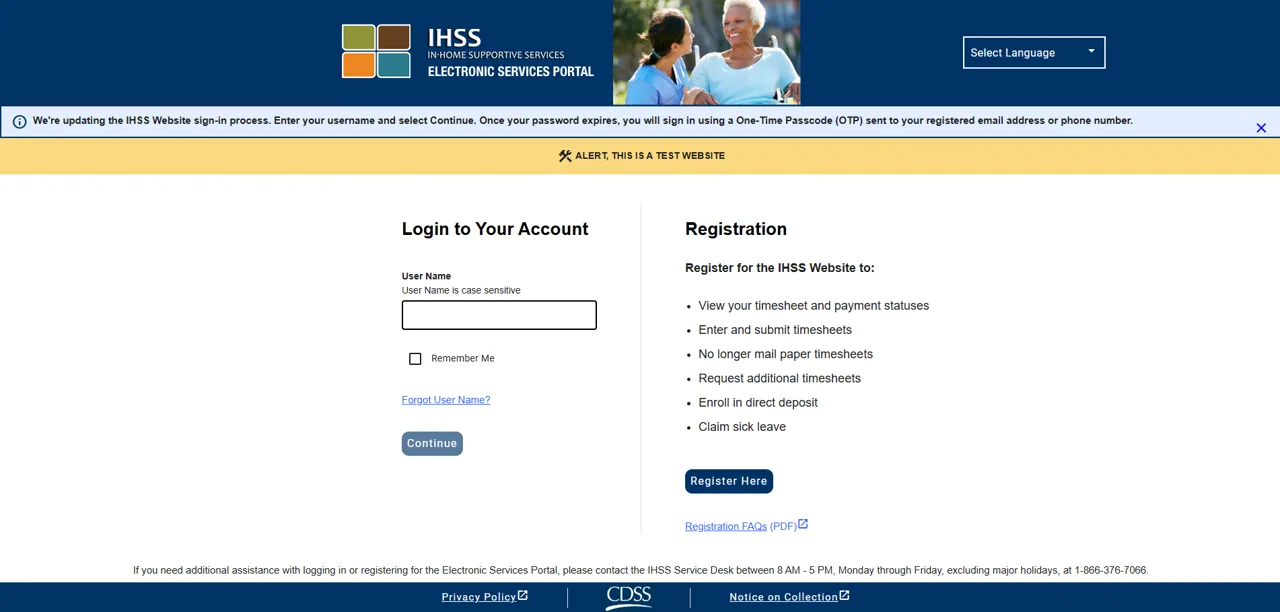
    Step 1: The ESP login screen with the User Name box and the Continue button.
    CDSS screen, ESP Recipient/Provider Registration, 10/2026

    Go to etimesheets.ihss.ca.gov. Enter your username and click Continue, then enter your one-time passcode.

    Button to click on the screen:Continue

  • Open your timesheet

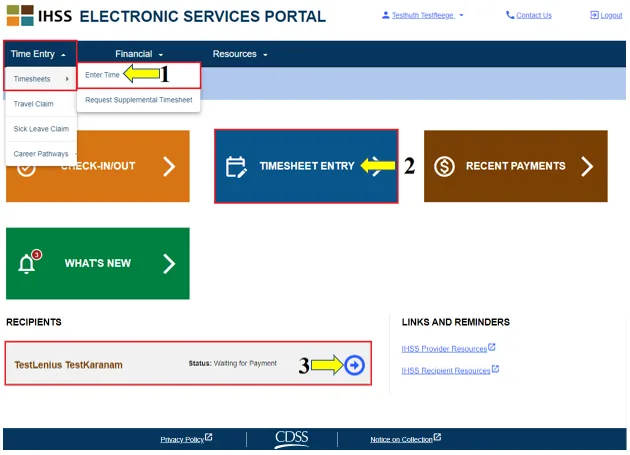
    Step 2: The ESP main page with the Timesheet Entry link and the blue arrow next to the recipient.
    CDSS screen, ESP Live-In Provider Time Entry, 06/2023

    On the main page, click Timesheet Entry. You can also click the blue arrow next to the recipient's name.

    Button to click on the screen:Timesheet Entry

  • Choose your recipient

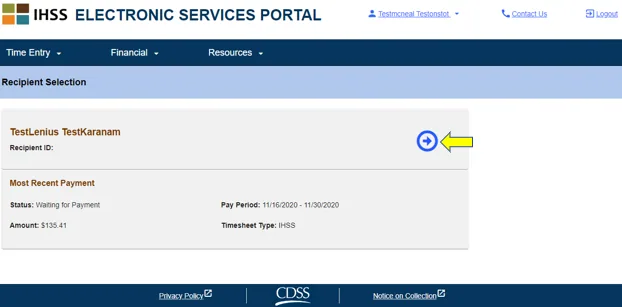
    Step 3: The Recipient Selection screen with the blue arrow on the right and the most recent payment details.
    CDSS screen, ESP Live-In Provider Time Entry, 06/2023

    Click the blue arrow next to the name of the person you work for. This screen also shows your most recent payment, its status and its pay period.

    Button to click on the screen:Blue arrow

  • Say that you live with them

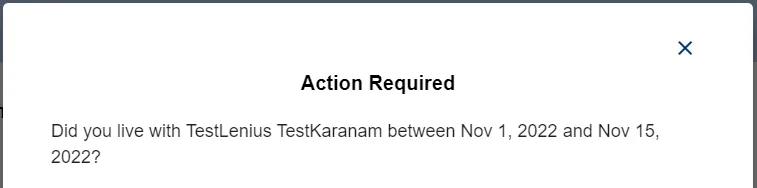
    Step 4: The Action Required pop-up asking if you lived with the recipient during the pay period.
    CDSS screen, ESP Live-In Provider Time Entry, 06/2023, cropped

    A pop-up called Action Required asks if you lived with your recipient. If you did, click Yes.

    Button to click on the screen:Yes

    You see this question if you have not turned in form SOC 2298. It appears the first time you open a timesheet for a pay period.

  • Choose the pay period

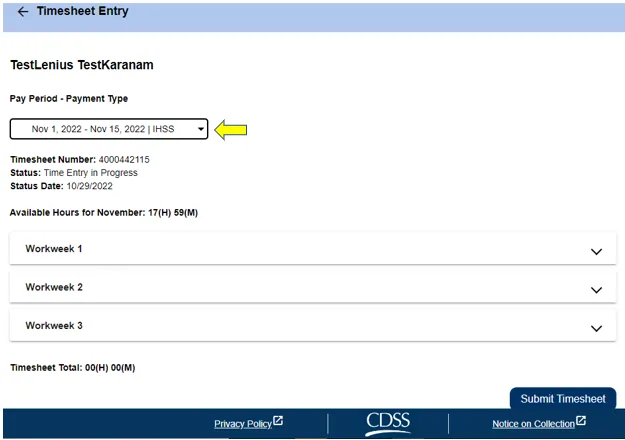
    Step 5: The Timesheet Entry screen with the Pay Period drop-down box and three workweeks.
    CDSS screen, ESP Live-In Provider Time Entry, 06/2023

    Use the drop-down box on the left to pick the pay period you want to enter.

    Button to click on the screen:Pay Period - Payment Type

    You may see more than one timesheet if you work for both WPCS and IHSS, or if you have not submitted earlier pay periods.

  • Open a workweek

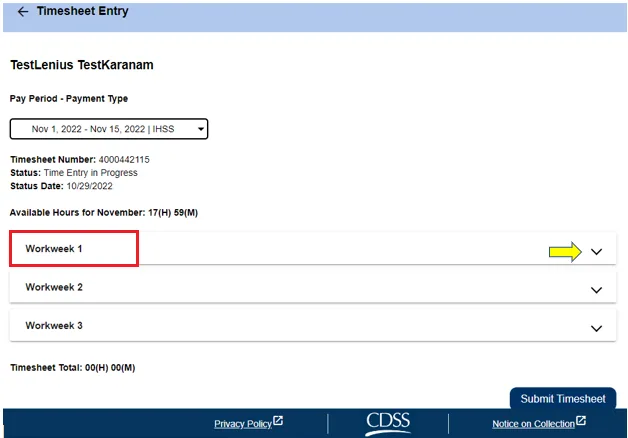
    Step 6: The Timesheet Entry screen with an arrow pointing to the drop-down arrow beside Workweek 1.
    CDSS screen, ESP Live-In Provider Time Entry, 06/2023

    Click the drop-down arrow next to the workweek you want. Each day then shows on its own.

    Button to click on the screen:Workweek 1

  • Enter your hours and save

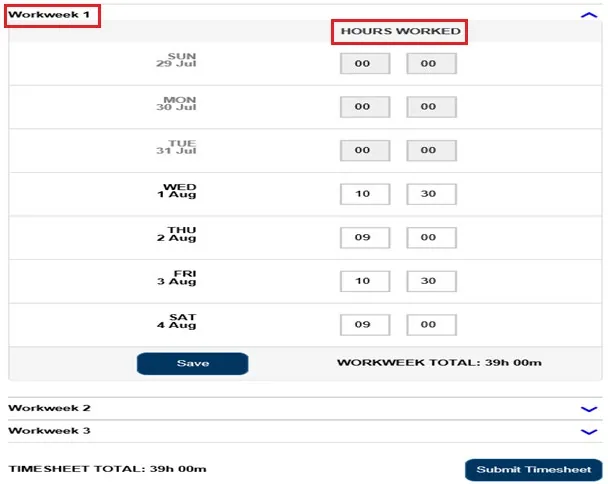
    Step 7: An open workweek with Hours Worked boxes for each day and the Save button.
    CDSS screen, ESP Live-In Provider Time Entry, 06/2023

    Enter the hours and minutes you worked each day, then click Save. Do the same for each workweek.

    Button to click on the screen:Save

    You get a message if hours are greater than 24 or minutes are greater than 59.

  • Submit your timesheet

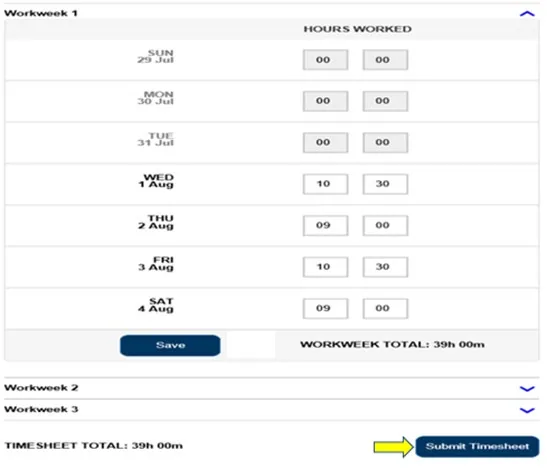
    Step 8: A saved workweek with the Workweek Total and an arrow pointing to the Submit Timesheet button.
    CDSS screen, ESP Live-In Provider Time Entry, 06/2023

    When all your hours are entered and correct, click Submit Timesheet.

    Button to click on the screen:Submit Timesheet

    If you submit before the end of a pay period, a message says the timesheet will be processed on the first business day of the upcoming pay period.

  • Sign and send to your recipient

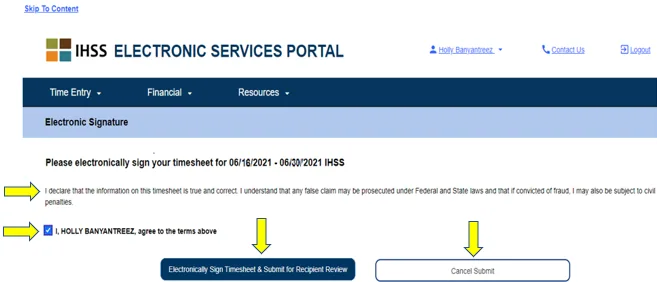
    Step 9: The Electronic Signature screen with the Agree to Terms box and the sign and submit button.
    CDSS screen, ESP Live-In Provider Time Entry, 06/2023

    Read the declaration and check the Agree to Terms box. Then click Electronically Sign Timesheet & Submit for Recipient Review.

    Button to click on the screen:Electronically Sign Timesheet & Submit for Recipient Review

    Changed your mind or made a mistake? Click Cancel Submit and make your changes.

Step 1

All steps in one list
  1. 1. Log in

    Go to etimesheets.ihss.ca.gov. Enter your username and click Continue, then enter your one-time passcode.

    Source: CDSS ESP Live-In Provider Time Entry, 06/2023, page 2

  2. 2. Open your timesheet

    On the main page, click Timesheet Entry. You can also click the blue arrow next to the recipient's name.

    Source: CDSS ESP Live-In Provider Time Entry, 06/2023, page 4

  3. 3. Choose your recipient

    Click the blue arrow next to the name of the person you work for. This screen also shows your most recent payment, its status and its pay period.

    Source: CDSS ESP Live-In Provider Time Entry, 06/2023, page 5

  4. 4. Say that you live with them

    A pop-up called Action Required asks if you lived with your recipient. If you did, click Yes.

    You see this question if you have not turned in form SOC 2298. It appears the first time you open a timesheet for a pay period.

    Source: CDSS ESP Live-In Provider Time Entry, 06/2023, page 6

  5. 5. Choose the pay period

    Use the drop-down box on the left to pick the pay period you want to enter.

    You may see more than one timesheet if you work for both WPCS and IHSS, or if you have not submitted earlier pay periods.

    Source: CDSS ESP Live-In Provider Time Entry, 06/2023, page 6

  6. 6. Open a workweek

    Click the drop-down arrow next to the workweek you want. Each day then shows on its own.

    Source: CDSS ESP Live-In Provider Time Entry, 06/2023, page 7

  7. 7. Enter your hours and save

    Enter the hours and minutes you worked each day, then click Save. Do the same for each workweek.

    You get a message if hours are greater than 24 or minutes are greater than 59.

    Source: CDSS ESP Live-In Provider Time Entry, 06/2023, page 9

  8. 8. Submit your timesheet

    When all your hours are entered and correct, click Submit Timesheet.

    If you submit before the end of a pay period, a message says the timesheet will be processed on the first business day of the upcoming pay period.

    Source: CDSS ESP Live-In Provider Time Entry, 06/2023, page 10

  9. 9. Sign and send to your recipient

    Read the declaration and check the Agree to Terms box. Then click Electronically Sign Timesheet & Submit for Recipient Review.

    Changed your mind or made a mistake? Click Cancel Submit and make your changes.

    Source: CDSS ESP Live-In Provider Time Entry, 06/2023, page 11

Submitted your timesheet? Here is what happens next

  1. 3

    Recipient approves The recipient reviews the hours and approves or rejects the timesheet

  2. 4

    The state processes and pays A complete timesheet turned in on time is usually paid within 10 days of when the state receives it (SOC 846)

  3. 5

    What comes next? Where is my pay, direct deposit, taxes, paid sick leave

Get the official guide

Is this your guide?

Live-in providers live in the same household as the recipient they serve. If that is you, you do not have to check in or out. You also do not fill in the start and end time and location fields. You only complete the Hours Worked fields on your timesheet.

You can enter your hours each day, or all at once at the end of the pay period.

What the portal asks you the first time

If you have not turned in form SOC 2298, the portal asks if you live with your recipient. It asks the first time you open a timesheet for a pay period. If you do live with your recipient, click Yes.

About form SOC 2298

The full name of the form is "IHSS and WPCS Program Live-In Self Certification Form for Federal and State Wage Exclusion (SOC 2298)." Live-in providers can self-certify in one of two ways. You can turn in a completed SOC 2298 to your county IHSS office, or you can complete the self-certification online in the ESP.

General information, not tax advice. Talk to a tax preparer.

Entering your hours

Hours Worked is the hours and minutes you worked that day. The portal shows a message if you make an error, such as "Hours entry cannot be greater than 24" or "Minutes entry cannot be greater than 59." Click Save after each workweek.

Submitting early

If you submit before the end of a pay period, a pop-up message says the timesheet will be processed on the first business day of the upcoming pay period.

After you submit

The ESP emails your recipient and asks them to review the timesheet. It sends reminder emails from time to time.

If you find a mistake after you submit

You may still be able to fix it if your recipient has not approved the timesheet yet. Ask your recipient to reject the timesheet for that pay period. You then get an email saying you can update and send it again online.

Source: ESP Live-In Provider Time Entry, Revised 06/2023.