IHSS Provider

How to set up or change direct deposit in ESP

11 stepsCDSS 10/2026

Independent guide based on official CDSS documents. Not affiliated with CDSS, the State of California or any county.

This guide shows how to enroll in direct deposit in the ESP. It also covers how to change your bank account, cancel direct deposit and view your requests. Have your ESP username and your 9-digit provider number ready.

Screens may look slightly different today.

  • Log in

    Enter your username and click Continue. Choose how to get your 6-digit one-time passcode, then enter it.

    Button to click on the screen:Continue

    The passcode expires after 10 minutes. If it did not arrive or it expired, click Resend Passcode.

  • Open Direct Deposit Entry

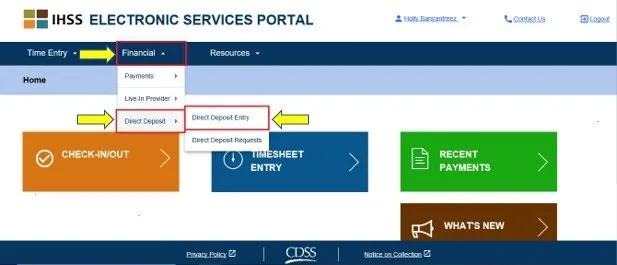
    Step 2: The ESP Provider Home screen with the Financial menu open and Direct Deposit Entry highlighted.
    CDSS screen, ESP Website Direct Deposit, 10/2026

    Click the Financial menu, then Direct Deposit, then Direct Deposit Entry.

    Button to click on the screen:Direct Deposit Entry

  • Choose NEW

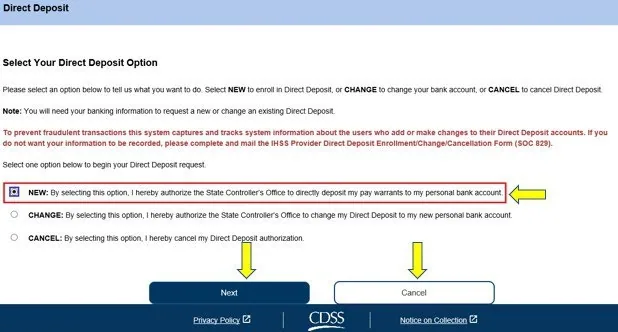
    Step 3: The Direct Deposit screen with the NEW option selected and the Next button.
    CDSS screen, ESP Website Direct Deposit, 10/2026

    You see three options: NEW, CHANGE and CANCEL. To enroll, select NEW and click Next. If you do not want to enroll, click Cancel.

    Button to click on the screen:Next

  • Choose the recipient

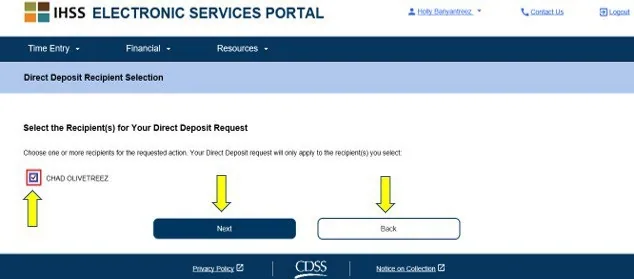
    Step 4: The Direct Deposit Recipient Selection screen with the box next to the recipient and the Next button.
    CDSS screen, ESP Website Direct Deposit, 10/2026

    Check the box next to the recipient you want to enroll for, then click Next. If you work for more than one recipient, all of them are listed.

    Button to click on the screen:Next

    To go back, click Back.

  • Enter your bank details

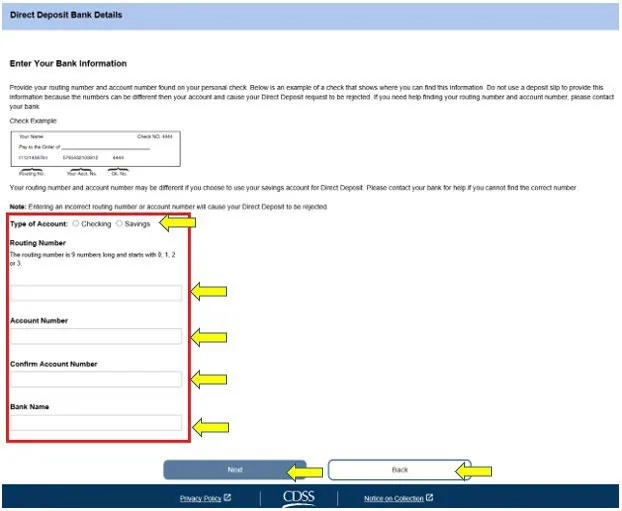
    Step 5: The Direct Deposit Bank Details screen with the account type, routing number and account number boxes.
    CDSS screen, ESP Website Direct Deposit, 10/2026

    Select Checking or Savings. Enter your routing number; the bank name fills in on its own. Enter your account number, then enter it again to confirm. Click Next.

    Button to click on the screen:Next

  • Read the notice

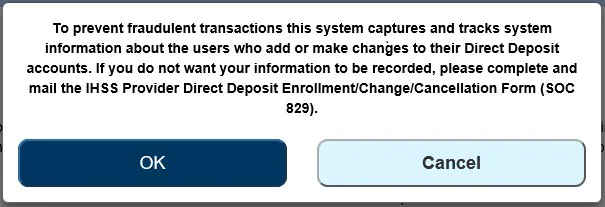
    Step 6: The pop-up about recording system information, with the OK and Cancel buttons.
    CDSS screen, ESP Website Direct Deposit, 10/2026

    A pop-up says the system records information about the people who add or change direct deposit accounts, to prevent fraud. If you do not want your information recorded, you can mail the paper form SOC 829 instead. To continue, click OK.

    Button to click on the screen:OK

    To stop, click Back.

  • Sign and submit

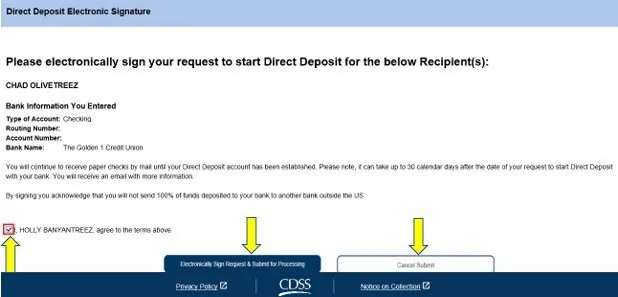
    Step 7: The Direct Deposit Electronic Signature screen with the agreement box and the buttons to sign and submit or cancel.
    CDSS screen, ESP Website Direct Deposit, 10/2026

    Read the Declaration. Check the box to agree. Click Electronically Sign Request & Submit for Processing. To stop, click Cancel Submit.

    Button to click on the screen:Electronically Sign Request & Submit for Processing

  • Confirm

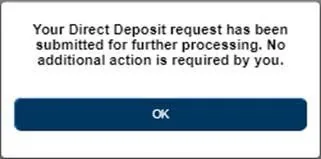
    Step 8: The confirmation pop-up that the Direct Deposit request has been submitted, with the OK button.
    CDSS screen, ESP Website Direct Deposit, 10/2026

    A pop-up says your Direct Deposit request has been submitted for further processing and no additional action is required by you. Click OK. You go back to the Provider Home screen.

    Button to click on the screen:OK

  • Change your bank account

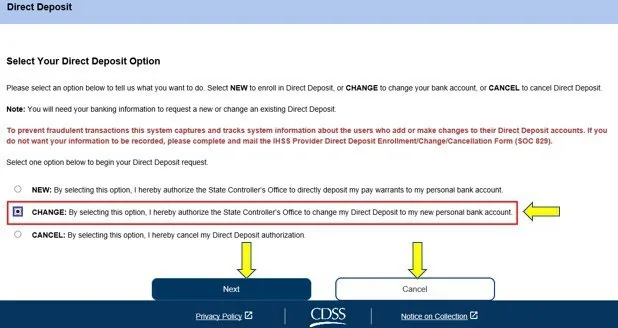
    Step 9: The Direct Deposit screen with the CHANGE option selected.
    CDSS screen, ESP Website Direct Deposit, 10/2026

    To change your account, open Direct Deposit Entry again. Select CHANGE and click Next. Then choose the recipient, enter the new bank details, and sign and submit the same way.

    Button to click on the screen:CHANGE

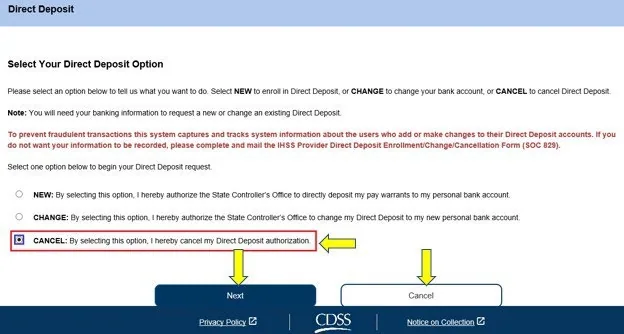
  • Cancel direct deposit

    Step 10: The Direct Deposit screen with the CANCEL option selected.
    CDSS screen, ESP Website Direct Deposit, 10/2026

    To cancel, open Direct Deposit Entry again. Select CANCEL and click Next. Choose the recipient, click OK on the notice, then sign and submit.

    Button to click on the screen:CANCEL

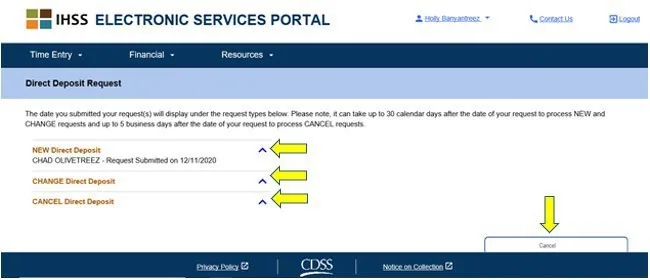
  • View your requests

    Step 11: The Direct Deposit Request screen with the list of requests and the blue arrows.
    CDSS screen, ESP Website Direct Deposit, 10/2026

    Click Financial, then Direct Deposit, then Direct Deposit Requests. You see the requests you sent, the recipient names and the dates. To open a request type, click the blue arrow on the right.

    Button to click on the screen:Direct Deposit Requests

Step 1

All steps in one list
  1. 1. Log in

    Enter your username and click Continue. Choose how to get your 6-digit one-time passcode, then enter it.

    The passcode expires after 10 minutes. If it did not arrive or it expired, click Resend Passcode.

    Source: CDSS ESP Website Direct Deposit, 10/2026, page 2

  2. 2. Open Direct Deposit Entry

    Click the Financial menu, then Direct Deposit, then Direct Deposit Entry.

    Source: CDSS ESP Website Direct Deposit, 10/2026, page 3

  3. 3. Choose NEW

    You see three options: NEW, CHANGE and CANCEL. To enroll, select NEW and click Next. If you do not want to enroll, click Cancel.

    Source: CDSS ESP Website Direct Deposit, 10/2026, page 3

  4. 4. Choose the recipient

    Check the box next to the recipient you want to enroll for, then click Next. If you work for more than one recipient, all of them are listed.

    To go back, click Back.

    Source: CDSS ESP Website Direct Deposit, 10/2026, page 4

  5. 5. Enter your bank details

    Select Checking or Savings. Enter your routing number; the bank name fills in on its own. Enter your account number, then enter it again to confirm. Click Next.

    Source: CDSS ESP Website Direct Deposit, 10/2026, page 5

  6. 6. Read the notice

    A pop-up says the system records information about the people who add or change direct deposit accounts, to prevent fraud. If you do not want your information recorded, you can mail the paper form SOC 829 instead. To continue, click OK.

    To stop, click Back.

    Source: CDSS ESP Website Direct Deposit, 10/2026, page 6

  7. 7. Sign and submit

    Read the Declaration. Check the box to agree. Click Electronically Sign Request & Submit for Processing. To stop, click Cancel Submit.

    Source: CDSS ESP Website Direct Deposit, 10/2026, page 7

  8. 8. Confirm

    A pop-up says your Direct Deposit request has been submitted for further processing and no additional action is required by you. Click OK. You go back to the Provider Home screen.

    Source: CDSS ESP Website Direct Deposit, 10/2026, page 7

  9. 9. Change your bank account

    To change your account, open Direct Deposit Entry again. Select CHANGE and click Next. Then choose the recipient, enter the new bank details, and sign and submit the same way.

    Source: CDSS ESP Website Direct Deposit, 10/2026, page 8

  10. 10. Cancel direct deposit

    To cancel, open Direct Deposit Entry again. Select CANCEL and click Next. Choose the recipient, click OK on the notice, then sign and submit.

    Source: CDSS ESP Website Direct Deposit, 10/2026, page 13

  11. 11. View your requests

    Click Financial, then Direct Deposit, then Direct Deposit Requests. You see the requests you sent, the recipient names and the dates. To open a request type, click the blue arrow on the right.

    Source: CDSS ESP Website Direct Deposit, 10/2026, page 16

Submitted your timesheet? Here is what happens next

  1. 3

    Recipient approves The recipient reviews the hours and approves or rejects the timesheet

  2. 4

    The state processes and pays A complete timesheet turned in on time is usually paid within 10 days of when the state receives it (SOC 846)

  3. 5

    What comes next? Where is my pay, direct deposit, taxes, paid sick leave

Get the official guide

Before you begin

You need two things before you start:

  • Your ESP username.
  • Your 9-digit provider number. If you do not have it, look at your IHSS notices, your pay stubs or your ESP account information, or contact your county office.

What this guide covers

  • How to enroll in direct deposit.
  • How to change your bank account.
  • How to cancel direct deposit.
  • How to view your direct deposit requests.

The paper form

The pop-up in the ESP says the system records information about the people who add or change direct deposit accounts. If you do not want your information recorded, you can fill in and mail the paper form, the IHSS/WPCS Provider Direct Deposit Enrollment/Change/Cancellation Form (SOC 829).

Source: ESP Website Direct Deposit, Revised 10/2026.

CDSS: ESP Website Direct Deposit, 10/2026